How to Change Servers in Fortnite: A Quick Guide


Last updated
Ever wondered how you can switch up the action by changing servers in Fortnite? Let’s dive into this gamer’s how-to!
Are you looking to hop from one server to another in Fortnite but not sure how? You’re in the right place for answers!
Changing Servers Made Easy
Fortnite lets you change servers, and it’s pretty simple. First, open Fortnite and head to the main menu. Now, look for the ‘Settings’ icon and give it a click.
Once you’re in Settings, find the tab marked ‘Game.’ In the ‘Game’ tab, you’ll see ‘Matchmaking Region’ at the top. Here, you can choose whichever server you fancy! Don’t forget to hit ‘Apply’ to save your changes, and voila, you’re all set to drop into a new server.
Why Switch Servers?
Switching servers can reduce lag, help you find more matches, or just mix things up with new players. It’s a cool trick to customize your Fortnite experience. Plus, it’s free and easy to do anytime you feel like it.
But remember, server changes might affect your game’s performance, so pick the one with the best ping for you. Happy gaming!
Winning in Fortnite and Beyond with Playbite
Now that you’ve mastered server swapping in Fortnite, why not level up in real life? With Playbite, you can play fun mobile games, earn points, and win cool prizes like Fortnite V-Bucks. Yes, you read that right!
Join Playbite today and get a chance to snag official Fortnite gift cards. It’s a fantastic way to get those V-Bucks without spending a dime. Plus, you’ll have loads of fun competing with others. So why wait? Jump into Playbite and start winning now!
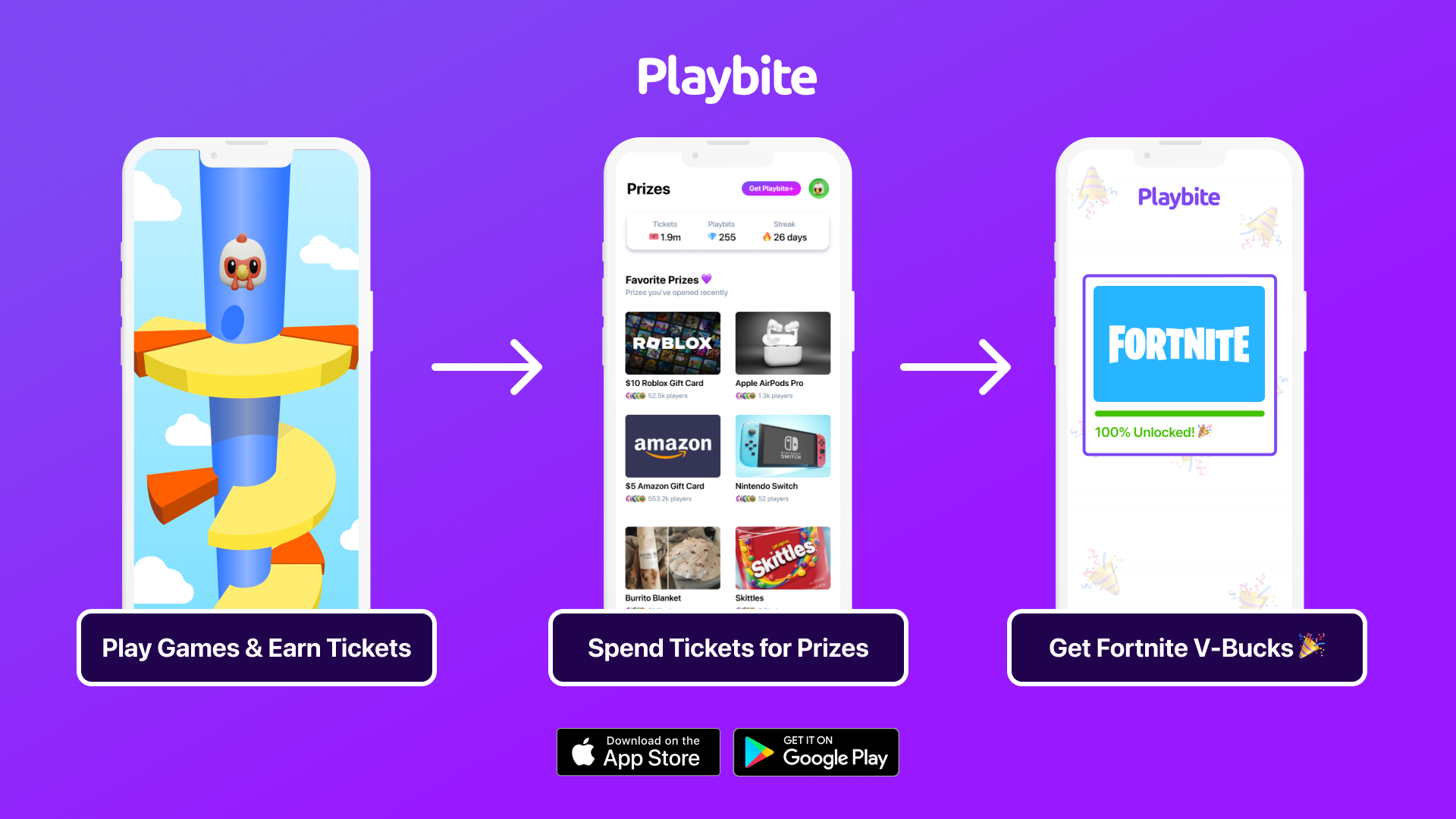
In case you’re wondering: Playbite simply makes money from (not super annoying) ads and (totally optional) in-app purchases. It then uses that money to reward players with really cool prizes!
Join Playbite today!






The brands referenced on this page are not sponsors of the rewards or otherwise affiliated with this company. The logos and other identifying marks attached are trademarks of and owned by each represented company and/or its affiliates. Please visit each company's website for additional terms and conditions.