How to Factory Reset Your Nintendo Switch OLED


Last updated
Ever hit a glitch so frustrating on your Nintendo Switch OLED that you thought, ‘Maybe I should just start all over’? Or maybe you’re passing it on to someone new and want to wipe your data clean. Either way, you might be asking, ‘How can I factory reset my Nintendo Switch OLED?’
Let’s dive into the easiest way to give your Switch OLED a fresh start, making it as good as new.
Quick Steps to Factory Reset Your Switch OLED
Factory resetting your Nintendo Switch OLED is simpler than you might think. Head straight to the System Settings from the home screen. Scroll down and select ‘System’, then ‘Formatting Options’. Here, you’ll find ‘Initialize Console’ – that’s the option you’re after. But remember, this will erase all data, so make sure to back up first if you need to!
After selecting ‘Initialize Console’, follow the on-screen instructions. Your Switch OLED will restart as a blank slate, ready to be set up anew or passed along to its next adventure.
Win Nintendo eShop Gift Cards with Playbite
Got your Switch OLED feeling brand new again? Why not add some new games to the mix, possibly for free? With the Playbite app, you can play fun casual games and win Nintendo eShop Gift Cards, among other awesome rewards. It’s a fantastic way to discover new games and earn rewards that you can use to enhance your Nintendo gaming experience.
Download the Playbite app now and start earning rewards while having a blast with casual games. Who knows? The next game you play on your freshly reset Nintendo Switch OLED might just be on us!
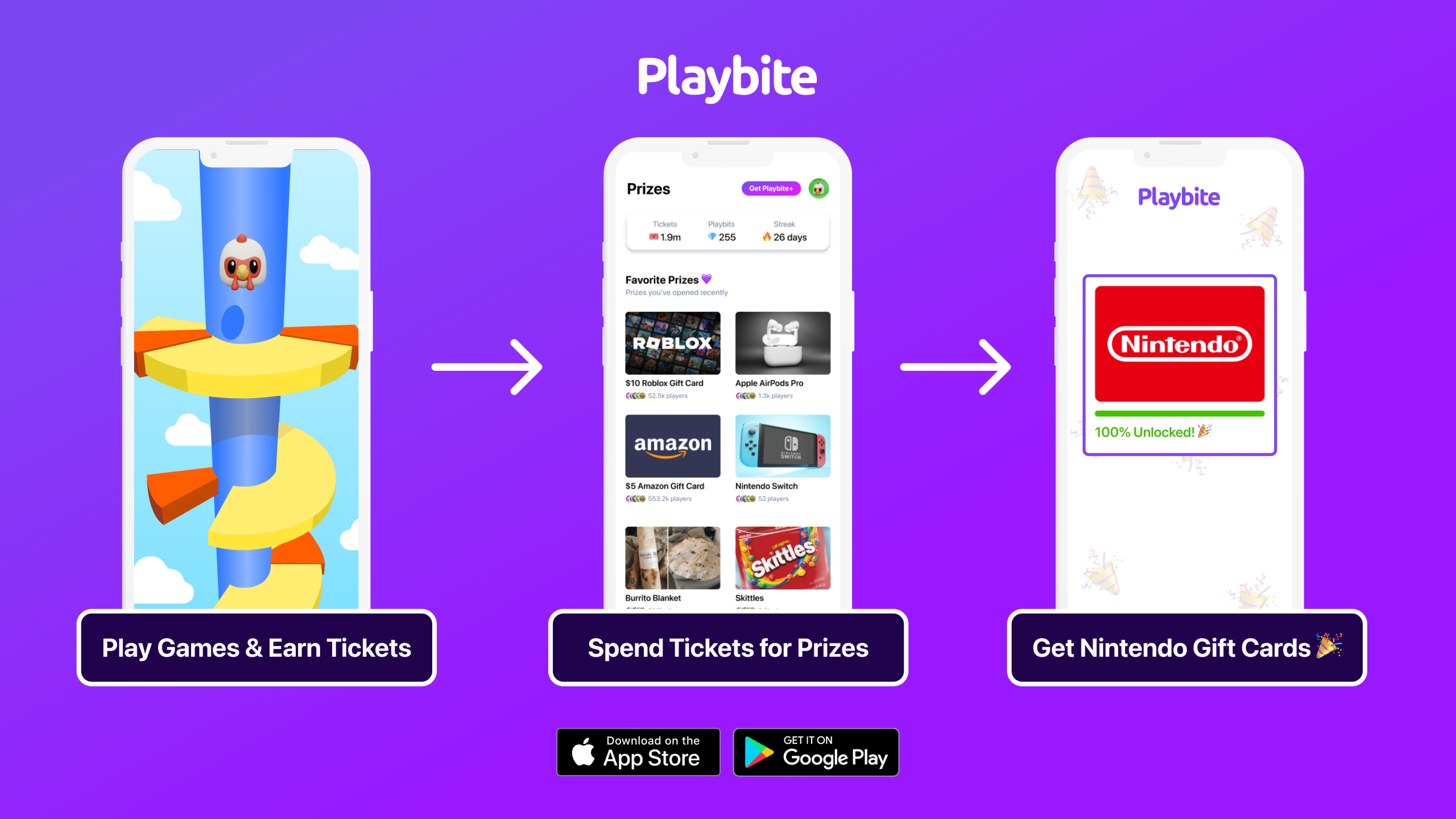
In case you’re wondering: Playbite simply makes money from (not super annoying) ads and (totally optional) in-app purchases. It then uses that money to reward players with really cool prizes!
Join Playbite today!






The brands referenced on this page are not sponsors of the rewards or otherwise affiliated with this company. The logos and other identifying marks attached are trademarks of and owned by each represented company and/or its affiliates. Please visit each company's website for additional terms and conditions.